> ## Documentation Index
> Fetch the complete documentation index at: https://docs.silver5ai.com/llms.txt
> Use this file to discover all available pages before exploring further.
# Banking Integration for Automatic Payments on Binance P2P
> Connect Silver5 AI to your banks and payment providers to verify and execute P2P payments automatically, via API or through automation for the remaining banks.
**Banking Integration** is the foundation of Silver5 AI's **Automatic Payments**: it connects your operation with your banks and payment providers so that payment verification and execution happen automatically, with no manual confirmation, no tab switching, and no missed payments. Your operation runs end to end from a single dashboard.
## What it automates
### Verification of incoming payments (sell orders)
When a customer marks an order as paid on Binance, Silver5 immediately checks your connected bank or provider account. If the payment is confirmed, the order status is updated automatically — no operator needs to log into the bank portal or manually review the transaction list.
### Outgoing payments (buy orders)
When you accept a buy order, Silver5 executes the payment to the seller's account automatically from your connected provider. The payment is triggered, recorded, and linked to the order — all with no manual intervention.
## Integration methods
Silver5 supports automatic payments two ways. You can use whichever one best fits each bank.
Direct API connection with payment providers. It's the simplest option: it requires nothing to install and no device to operate.
For the remaining banks, Silver5 executes payments by operating the bank automatically — in the cloud (**Browser**) or from the desktop app with a phone (**Mobile**).
### Via API
Direct API connection with payment providers for automatic verification and execution.
Payment verification and multi-currency automatic payments. Supports 28+ currencies for global P2P operations.
Payment processing integration for order settlement and automatic confirmation flows.
#### Multi-currency support
The ZEN.com integration supports 28+ currencies, including AED, AUD, CAD, CHF, EUR, GBP, JPY, MXN, USD, and more. Operate in multiple currencies from the same dashboard, without maintaining separate flows per currency.
### Via automation (remaining banks)
For banks that don't integrate via API, Silver5 executes payments by **operating the bank automatically**. There are two variants depending on your operation:
Payments run **in the cloud**. You don't need to install anything or use a phone: you configure the banking integration and payments are processed on their own.
The Silver5 desktop app operates the bank app on an **Android phone** (a real one over USB or the BlueStacks emulator). Ideal for banks that only operate from their mobile app.
## How to connect a provider via API
In your Silver5 dashboard, go to **Modules → Banking Integration**.
Select **ZEN.com** or **Compose** from the list of supported integrations.
Follow the provider's own authorization steps to grant Silver5 read and payment permissions on your account. Each provider has its own flow (OAuth or API key); the on-screen instructions guide you through each one.
Set which operators can trigger payments and which have read-only access. Least-privilege assignment keeps your operation secure even with large teams.
Before going live, verify the connection end to end with a low-amount real order. Confirm that payment detection and execution work.
Once the test passes, enable automation for your real P2P flow. From that point on, Silver5 handles verification and payments.
Is the bank you want to use not on the API list? Set up automatic payments via [Browser](/modules/automatic-payments/browser) or [Mobile](/modules/automatic-payments/mobile).
## Manual mode and automatic mode
When you create a banking integration, it's created in **MANUAL mode** and **inactive**. In manual mode, you confirm and execute each payment yourself from the Silver5 interface: you validate the beneficiary's data and enter a **two-factor (2FA)** code before sending. Once you've verified that everything works, the next step is to switch it to **automatic mode**.
 ### Confirm a payment in manual mode
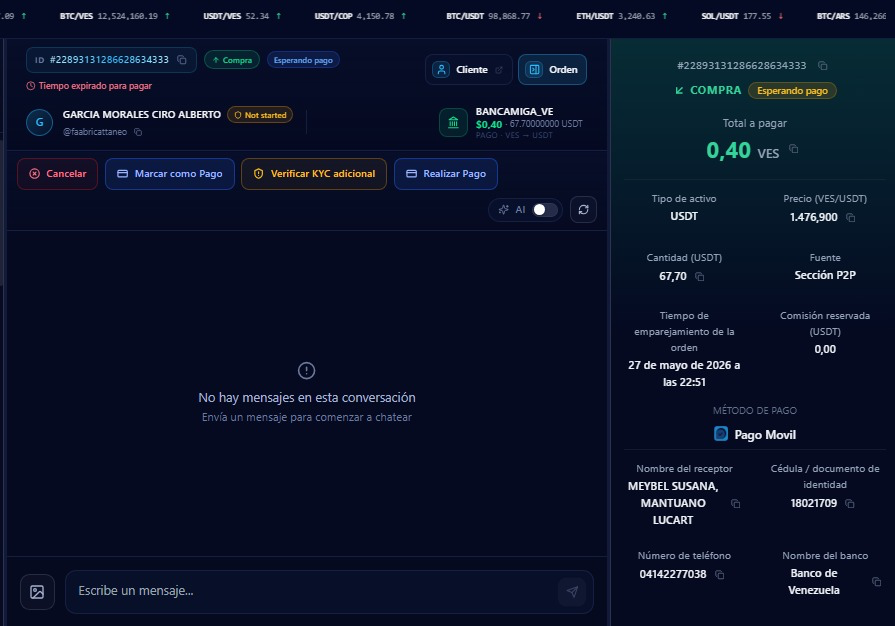
On the P2P order awaiting payment, tap **Make Payment**.
### Confirm a payment in manual mode
On the P2P order awaiting payment, tap **Make Payment**.
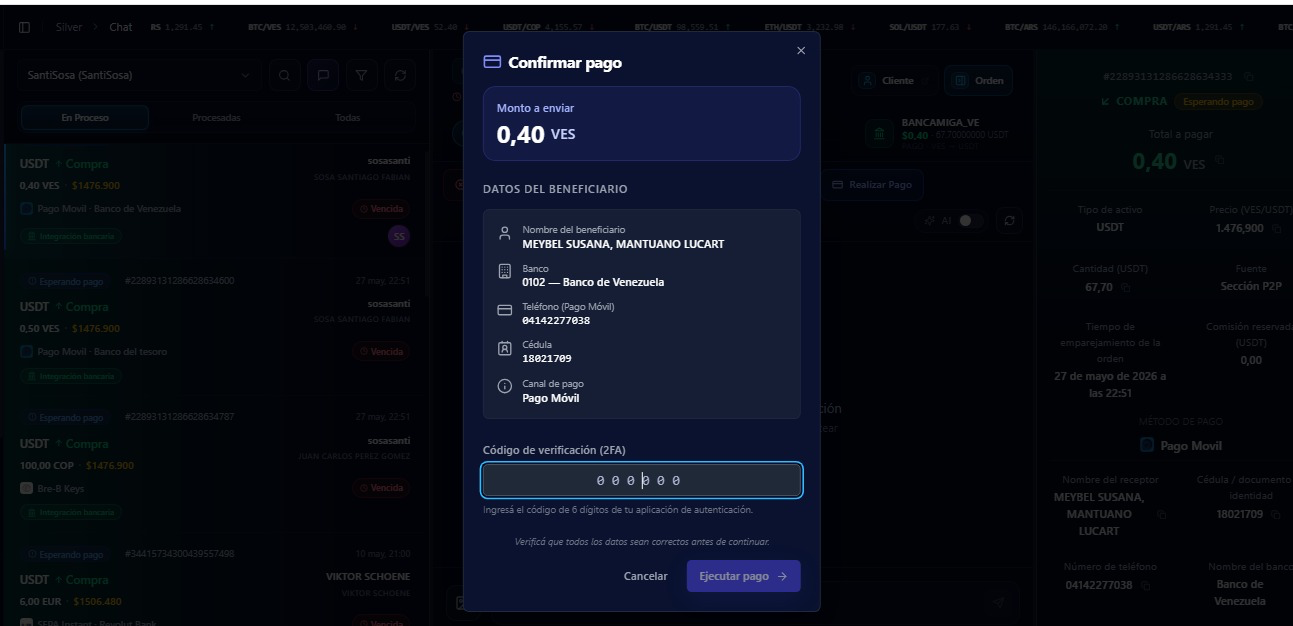
 Check that the beneficiary's name, bank, phone, and ID number match the order.
Enter the 6-digit **verification code (2FA)** from your authenticator app and tap **Execute payment**.
Check that the beneficiary's name, bank, phone, and ID number match the order.
Enter the 6-digit **verification code (2FA)** from your authenticator app and tap **Execute payment**.
 ### Switch to automatic mode
Once you've validated the flow in manual mode, the next step is to enable **automatic mode**: Silver5 executes the payments for you, without confirming them one by one. To enable it, contact support.
## Security model
Silver5 AI connects to your bank or provider with **read and payment permissions scoped solely to P2P operations — withdrawal permissions are never requested or granted**. Silver5 holds no custody of your funds and cannot transfer crypto or initiate any movement of funds outside the defined P2P payment flows. Every banking action —verification, payment execution, status update— is logged with the operator who triggered it, the timestamp, and the associated order ID.
## Audit log
Every banking action is recorded in a persistent, exportable log: who verified the payment, who executed the outgoing transfer, and the exact timestamp of each event. Use the audit log to meet compliance requirements, respond to disputes, or review your team's activity at any time.
Banking Integration is available on the **Advanced** and **Enterprise** plans. If you're on a lower plan and want to enable this module, [contact us](#) and we'll activate it on your account.
### Switch to automatic mode
Once you've validated the flow in manual mode, the next step is to enable **automatic mode**: Silver5 executes the payments for you, without confirming them one by one. To enable it, contact support.
## Security model
Silver5 AI connects to your bank or provider with **read and payment permissions scoped solely to P2P operations — withdrawal permissions are never requested or granted**. Silver5 holds no custody of your funds and cannot transfer crypto or initiate any movement of funds outside the defined P2P payment flows. Every banking action —verification, payment execution, status update— is logged with the operator who triggered it, the timestamp, and the associated order ID.
## Audit log
Every banking action is recorded in a persistent, exportable log: who verified the payment, who executed the outgoing transfer, and the exact timestamp of each event. Use the audit log to meet compliance requirements, respond to disputes, or review your team's activity at any time.
Banking Integration is available on the **Advanced** and **Enterprise** plans. If you're on a lower plan and want to enable this module, [contact us](#) and we'll activate it on your account.